Introduction
UTM parameters help you understand where your traffic is coming from and which campaigns are performing best. With 9to.in, you can easily add UTM parameters while creating short links and track detailed insights.
This guide will show you how to use UTM tracking effectively.
What Are UTM Parameters?
UTM (Urchin Tracking Module) parameters are tags added to your URL to track campaign performance.
They help you answer questions like:
Which platform is driving traffic?
Which campaign is performing best?
Which ads or content generate clicks?
Types of UTM Parameters
Here are the key UTM parameters you can use:
UTM Source
Identifies where traffic comes from
👉 Example:facebook,google,newsletterUTM Medium
Identifies the marketing channel
👉 Example:cpc,email,socialUTM Campaign
Identifies the campaign name
👉 Example:summer_sale,product_launchUTM Term (Optional)
Used for paid keywords
👉 Example:running_shoesUTM Content (Optional)
Used to differentiate ads or creatives
👉 Example:banner_ad,video_ad
Step-by-Step: Add UTM Parameters in 9to
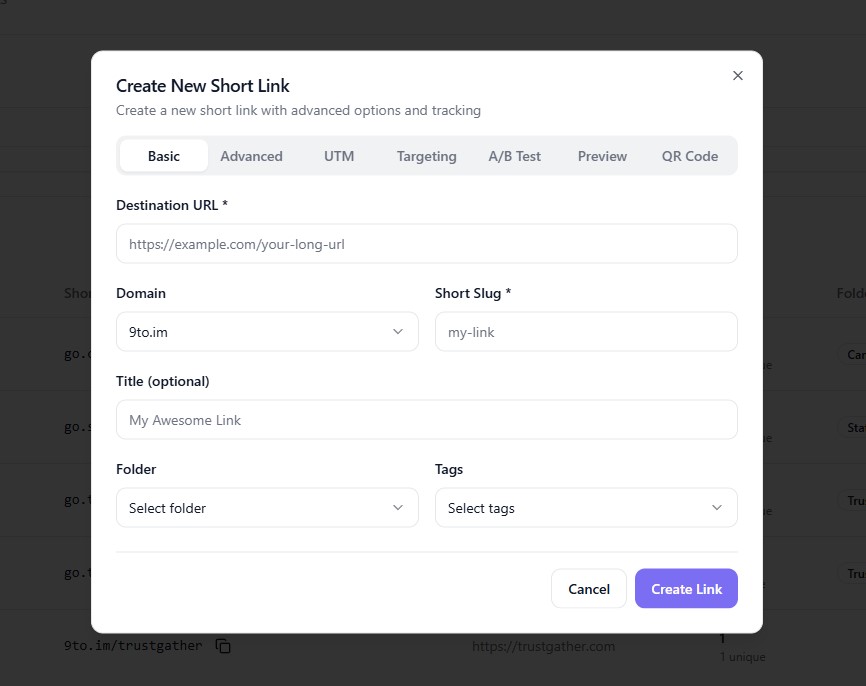
Step 1: Open Create Link
Go to Links dashboard
Click + Create Link
Step 2: Enter Your Destination URL
Add your main website or landing page URL.
Step 3: Go to the UTM Tab
In the link creation popup, click on:
👉 UTM
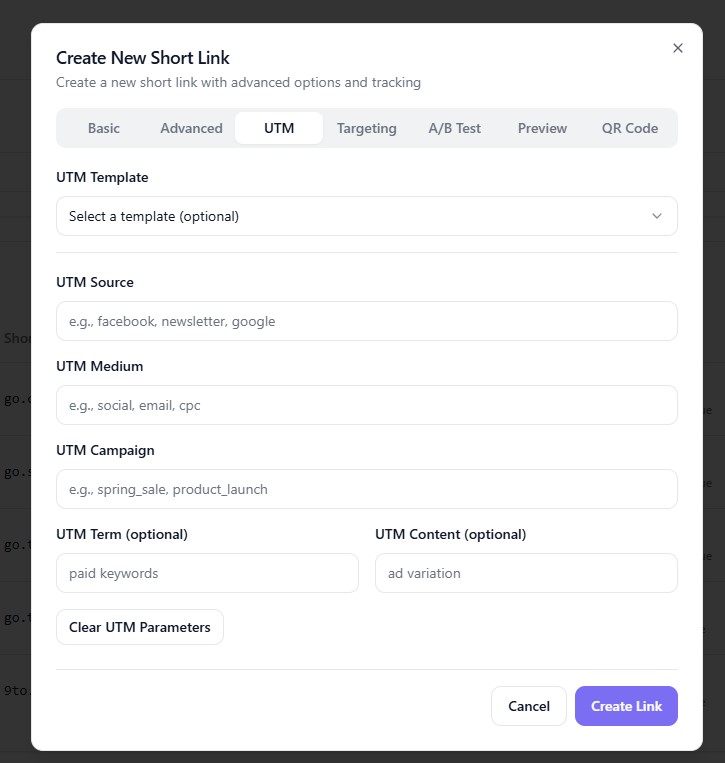
Step 4: Fill UTM Fields
Enter your campaign details:
Add Source (e.g., Facebook)
Add Medium (e.g., social)
Add Campaign Name (e.g., diwali_offer)
(Optional) Add Term and Content
👉 9to will automatically attach these parameters to your URL.
Step 5: Create the Link
Click:
👉 Create Link
Your short link will now include UTM tracking.
Example UTM URL
Your final tracked URL may look like:
https://example.com?utm_source=facebook&utm_medium=social&utm_campaign=diwali_offerWhen shortened via 9to, you’ll get a clean short link while still tracking all parameters.
Where to See UTM Data
After sharing your link, you can track performance inside 9to:
View click analytics
Check traffic sources
Analyze campaign performance
Compare results across links
Best Practices for UTM Tracking
✅ Use consistent naming conventions (e.g., always use “facebook”, not “Facebook”)
✅ Avoid spaces (use
_or lowercase words)✅ Keep campaign names clear and descriptive
✅ Use UTM in every marketing campaign
✅ Combine UTM with A/B testing for better insights
Common Mistakes to Avoid
❌ Using inconsistent naming (e.g., fb, Facebook, FB)
❌ Forgetting to add UTM parameters
❌ Overcomplicating campaign names
❌ Not analyzing results after tracking
Use Cases
UTM parameters are useful for:
📢 Social media campaigns
📧 Email marketing
💰 Paid ads (Google Ads, Facebook Ads)
🤝 Influencer campaigns
📰 Newsletter tracking
Conclusion
Using UTM parameters in 9to.in helps you move from guesswork to data-driven marketing. You’ll know exactly what works, what doesn’t, and how to improve your campaigns.
Start adding UTM parameters to every link and unlock powerful insights 🚀