🚀 Introduction
Using a custom domain allows you to create branded short links like go.yourbrand.com instead of generic URLs. With 9to.in, you can easily connect your domain and build trust with every click.
Branded links improve credibility, increase click-through rates, and strengthen your brand identity.
🌐 What is a Custom Domain?
A custom domain is your own branded domain or subdomain used for shortening links.
Example:
Default link →
9to.im/abc123Branded link →
go.yourbrand.com/sale
👉 Branded links look more professional and trustworthy.
🛠️ Step-by-Step: Add Custom Domain
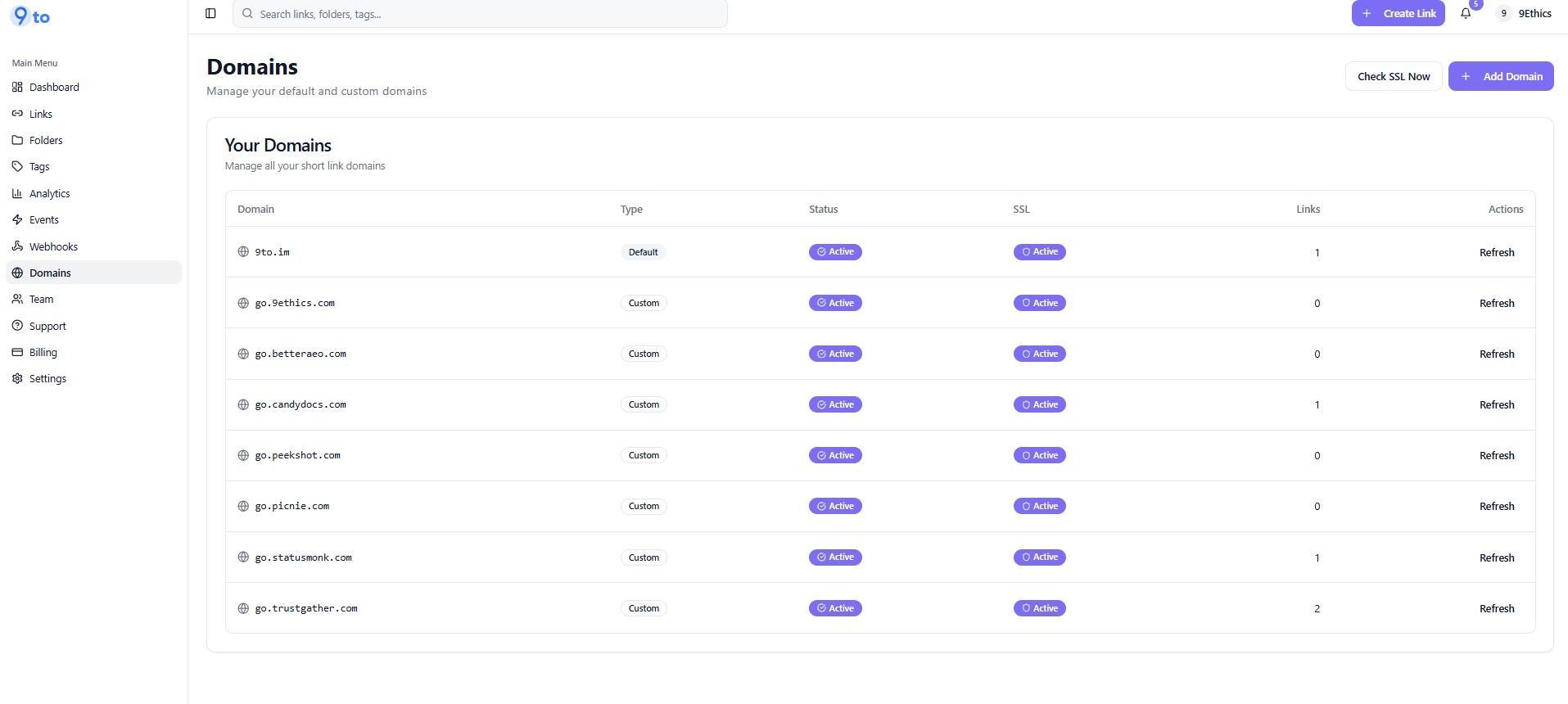
🌍 Step 1: Go to Domains Section
From the sidebar, click 👉 Domains
You will see your domains list:
➕ Step 2: Click on Add Domain
Click 👉 Add Domain
This will open the domain setup popup.
🔗 Step 3: Enter Your Domain
Enter your domain or subdomain
Examples:
yourdomain.com(root domain)go.yourdomain.com(subdomain – recommended)
⚙️ Step 4: Configure DNS Records
You need to update DNS settings in your domain provider.
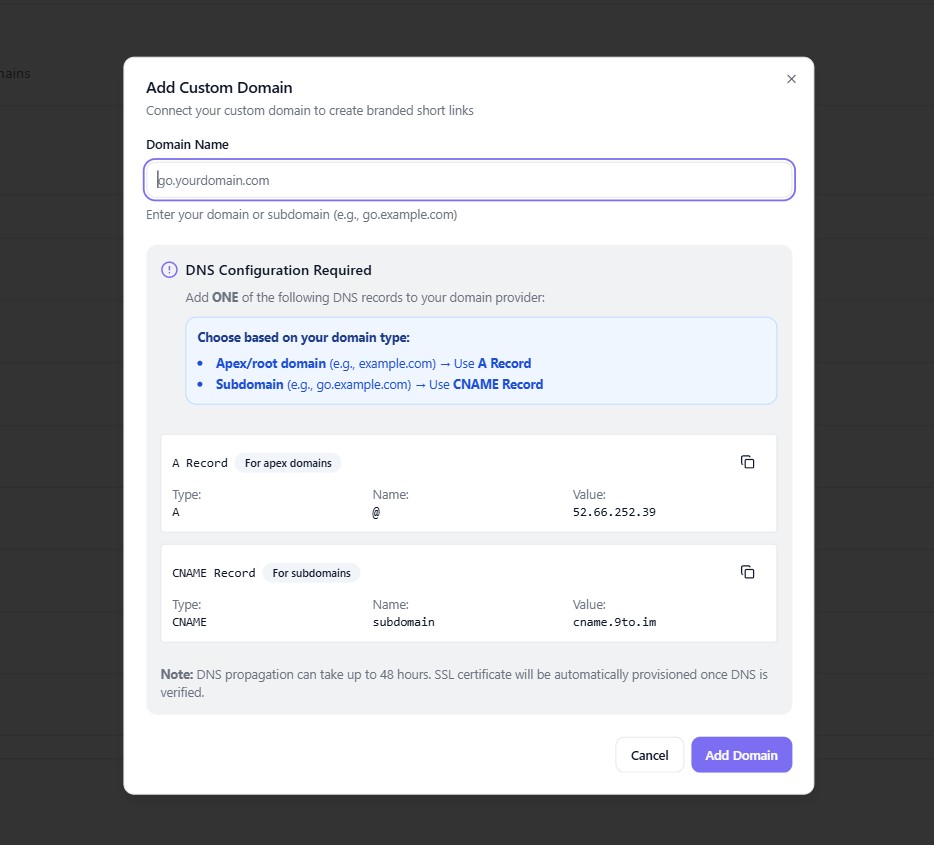
Option 1: Apex Domain (Root Domain)
Type: A Record
Name:
@Value:
52.66.252.39
Option 2: Subdomain (Recommended)
Type: CNAME Record
Name:
go(or your subdomain)Value:
cname.9to.im
👉 Choose one based on your setup.
⏳ Step 5: Wait for DNS Verification
DNS changes may take up to 24–48 hours
Once verified:
Domain becomes Active
SSL is automatically enabled
🔒 Step 6: Check SSL Status
In the Domains dashboard:
Ensure Status = Active
Ensure SSL = Active
👉 This ensures secure HTTPS links.
🔗 Step 7: Use Your Custom Domain
While creating a short link:
Go to Basic tab
Select your custom domain from dropdown
👉 Your links will now use your branded domain.
⚡ How It Works
Once connected:
All your short links use your domain
Users see your brand instead of generic URLs
Redirects happen instantly and securely
🎯 Benefits of Custom Domains
🔒 Build trust with users
📈 Increase click-through rates
🏷️ Strengthen brand identity
📢 Improve marketing performance
🌐 Maintain consistent branding
💡 Best Practices
✅ Use a short and clean subdomain (e.g., go.yourbrand.com)
✅ Keep slugs readable (e.g., /offer, /sale)
✅ Always use HTTPS (SSL enabled)
✅ Use same domain across campaigns
❌ Common Mistakes to Avoid
❌ Incorrect DNS configuration
❌ Using long or complex domains
❌ Not waiting for DNS propagation
❌ Ignoring SSL status
🔥 Pro Tips
Use custom domains with:
📊 Analytics tracking
🎯 Geo targeting
🧪 A/B testing
For agencies:
Use different domains for each client
🏁 Conclusion
Custom domains in 9to.in help you create professional, branded links that users trust and click more often. With simple DNS setup and automatic SSL, you can quickly upgrade your link strategy.
Start using custom domains and turn every link into a branded experience 🚀