🚀 Introduction
Webhooks allow you to receive real-time notifications whenever an event happens in your links. With 9to.in, you can send data instantly to your systems, CRMs, or apps like Slack, Zapier, or custom APIs.
This helps you automate workflows and react to events instantly.
🔔 What are Webhooks?
Webhooks are automated HTTP callbacks triggered by events.
Example:
A user clicks a link → webhook sends data to your server
A QR code is scanned → notification is triggered
👉 Instead of polling data, webhooks push updates in real-time.
🛠️ Step-by-Step: Set Up Webhooks
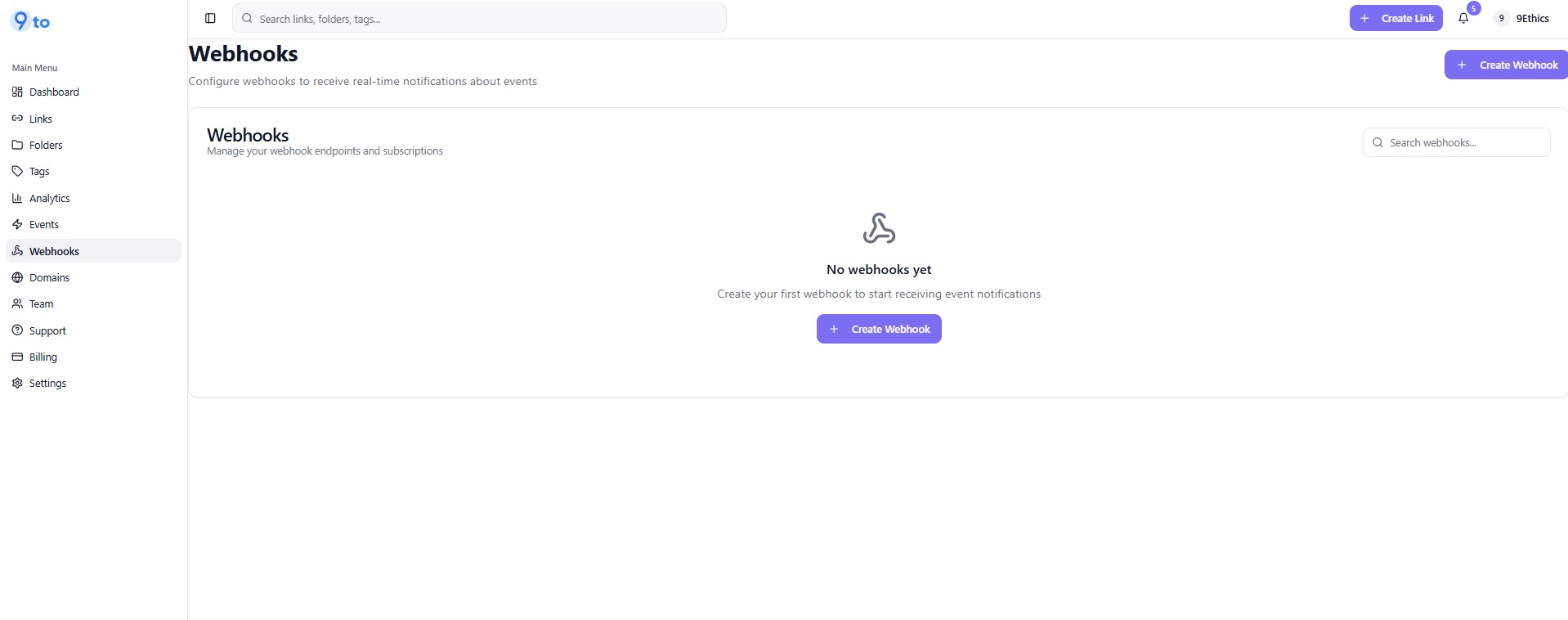
🔗 Step 1: Go to Webhooks Section
From the sidebar, click 👉 Webhooks
You will see a screen like this:
➕ Step 2: Click on Create Webhook
Click 👉 Create Webhook
This will open the webhook setup form.
🧾 Step 3: Enter Webhook Details
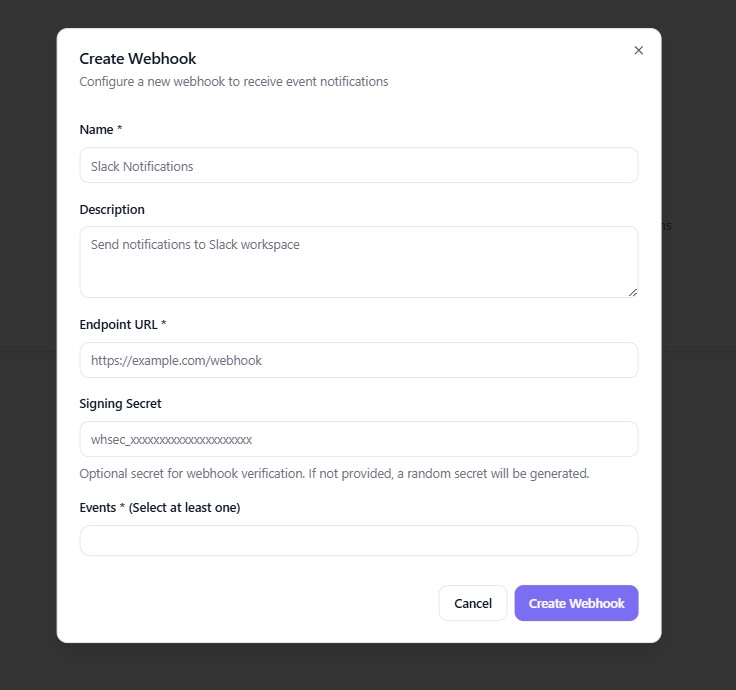
Fill in the following fields:
🏷️ Name
Give your webhook a name
👉 Example: Slack Notifications
📝 Description (Optional)
Add details about the webhook purpose
👉 Example: Send click events to Slack
🌐 Endpoint URL
Enter your server or service URL
👉 Example:
https://yourdomain.com/webhookThis is where event data will be sent.
🔐 Signing Secret (Optional)
Add a secret key for verification
👉 Helps you:
Validate incoming webhook requests
Ensure security
If not provided, a secret may be auto-generated.
⚡ Events
Select events you want to track:
Link clicks
Redirect events
QR scans
Other system events
👉 You must select at least one event.
✅ Step 4: Create Webhook
Click:
👉 Create Webhook
Your webhook is now active.
⚡ How Webhooks Work
When an event occurs:
9to detects the event (e.g., link click)
Sends a POST request to your endpoint
Your system receives data instantly
You can process or store the data
📦 Example Use Cases
Webhooks can be used for:
🔔 Real-time notifications (Slack, email)
📊 Sending data to analytics tools
🧾 CRM updates
🤖 Automation workflows
📥 Lead tracking systems
🔒 Security Best Practices
✅ Always use HTTPS endpoint URLs
✅ Verify webhook requests using signing secret
✅ Validate incoming data
✅ Avoid exposing sensitive endpoints
💡 Best Practices
✅ Use descriptive webhook names
✅ Test webhook endpoints before production
✅ Handle failed requests gracefully
✅ Log webhook data for debugging
❌ Common Mistakes to Avoid
❌ Incorrect endpoint URL
❌ Not handling webhook failures
❌ Ignoring security validation
❌ Not selecting events
🔥 Pro Tips
Combine webhooks with:📊 Analytics
🎯 Targeting
🧪 A/B testing
Use with tools like:Zapier
Slack
Custom backend systems
🏁 Conclusion
Webhooks in 9to.in enable powerful automation by sending real-time event data to your systems. Whether you're tracking clicks, triggering notifications, or integrating with other tools, webhooks help you build smarter workflows.
Start using webhooks to automate your link management 🚀